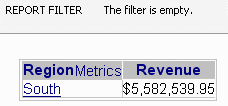
One of the data security options available in Strategy SQL Generation Engine is the system prompt named "User login." When used in a report filter or security filter, this prompt is always answered automatically with the user login ID that opened the current session. By modeling relationships between user IDs and other warehouse data, it is possible to implement complex data security requirements with minimum architecture in the Strategy project metadata. Consult the following Strategy Knowledgebase article for an introduction to the use of the system prompt in SQL reports.
KB10937
The "User login" system prompt may also be used in MDX reports against supported multidimensional cube providers. (As of Strategy 10, these are SAP BW/BI, Microsoft Analysis Services, Cognos TM1 and Essbase.)
Important: Basing filtering criteria on user IDs requires that the IDs exist as dimensional member data in the cube. The relationship between users and attribute elements is often many-to-many: a user should be able to see multiple attribute elements, and the same element might need to be visible to multiple users. Cube providers may or may not support many-to-many relationships. It is the user's responsibility to model the data security relationships in cubes to ensure correct data. Because of restrictions specific to one cube provider or another, it may not always be possible to do this.
Note: The filtering techniques described herein apply to MDX report results. MDX allows measure (metric) values to be filtered based on any dimension, even dimensions that are not selected. During attribute element browsing for prompts, attribute values are selected without respect to a metric. In that case, filters may be applied if the filtering attribute is in the same hierarchy as the selected attribute. Many-to-many relationships are generally not supported within one hierarchy; thus, it may not be possible to restrict element data in prompts based on the "User login" system prompt.
Member properties and attribute form mapping
When filtering cube data to match the user's login, there must be cube attribute representing Strategy users. This attribute must have a member property whose data match the user's login ID exactly. It is not sufficient to use the native ID data returned from MDX Cube data sources. These IDs include additional information about elements' position in the hierarchy, and cannot be used for direct comparison. For example, the SQL Server Analysis Services 2005 native ID for an MSTR User attribute populated with login IDs from the Strategy Tutorial metadata might be:
[user dimension].[user login].&[cbecker]
But, the "User login" prompt would be answered with only "cbecker," and a matching element would never be found.
In Strategy, member properties from the cube are mapped onto attribute forms. Filtering qualifications, then, should use the appropriate attribute form. In some cases, particularly security filtering, it may be best to map a valid member property onto the cube attribute's ID form, as shown. In this cube, both the MEMBER_KEY and MEMBER_NAME properties contain the exact user login data. By setting MEMBER_KEY to be associated with the attribute's ID form, the attribute ID may be compared directly to the system prompt's result.

Note: The member properties available for attribute may vary depending on the cube provider and the dimension's definition.
The "User login" prompt in report filters
In general, the "User login" prompt should be used in attribute form qualifications, such as the following:

In MDX, a Filter() expression is used to reduce the entire list of MSTR User member to the one whose MEMBER_NAME property is "cbecker." This user is associated only with data from the Central region, and only that region is displayed in the report's results.

The "User login" prompt in ApplySimple custom MDX metrics
If some metrics on the template should be restricted by the user login while other metrics are not restricted, custom MDX metric formulas must be constructed to perform the filtering. Consult the following Strategy Knowledgebase article for more details on simulating conditional metrics with MDX.
If the cube dimension's key data use the Strategy login directly, the formula can be relatively simple. In the sample cube here, the native IDs from the cube does contain the login: [MSTR User].[MSTR User].&[cbecker] The ApplySimple string can build this ID by using a placeholder where the user login should appear:

ApplySimple("([MSTR User].[MSTR User].&[#0], #1)", ?[user login], Revenue)
f the key data in the cube do not correspond to Strategy logins, then a more complicated expression must be used to filter on a member property containing the appropriate data.
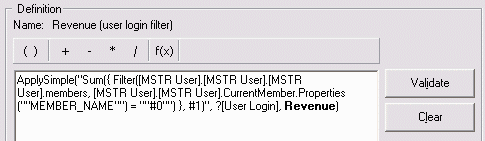
Note: The doubled quotation marks -- "" -- are an escape character sequence in the metric editor to insert a double-quote into a string that is delimited by double quotes. This feature was introduced in Strategy Developer.
Both metrics return the same results; however, performance of the simpler expression is likely to be better.

The "User login" prompt in security filters applied to MDX Cubes
To apply security filters to MDX Cubes, the filtering attribute in the cube must be mapped onto a project attribute. This attribute should have a lookup table in the SQL data warehouse. All prerequisites for using security filters with MDX Cubes should be completed before introducing the user login prompt, according to the following Strategy Knowledgebase article:
After the attribute mapping is established, the security filter may be defined as an attribute form qualification based on the project attribute.
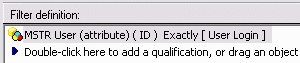
When a user associated with this security filter runs a report against a MDX Cube that is mapped over to this project attribute, the filter is incorporated into the report and controls the MDX result. This example report contains no report filter definition, but the result is limited to the Region associated with the user.