EducationSoftwareStrategy.com
StrategyCommunity

Knowledge Base

Product

Community

Knowledge Base

TopicsBrowse ArticlesDeveloper Zone

Product

Download SoftwareProduct DocumentationSecurity Hub

Education

Tutorial VideosSolution GalleryEducation courses

Community

GuidelinesGrandmastersEvents
x_social-icon_white.svglinkedin_social-icon_white.svg
Strategy logoCommunity

© Strategy Inc. All Rights Reserved.

LegalTerms of UsePrivacy Policy
  1. Home
  2. Topics

KB31178: How to retrieve cache files from the MicroStrategy Intelligence Server for in-house troubleshooting


Community Admin

• Strategy


Along with a backup of the metadata (MD), cache files can be restored on MicroStrategy Technical Support environments to troubleshoot report or document-specific issues. With these files, Technical Support can execute reports or documents that have corresponding caches without having to connect to your data warehouse. Follow these steps in a 3-tier (or 4-tier) environment to collect the cache files.

INTRODUCTION
Along with a backup of the metadata (MD), cache files can be restored on Strategy Technical Support environments to troubleshoot report or document-specific issues. With these files, Technical Support can execute reports or documents that have corresponding caches without having to connect to your data warehouse.
 
Follow these steps in a 3-tier (or 4-tier) environment to collect the cache files:
 
STEPS FOR COLLECTING CACHE FILES
  • Make sure caching is enabled for the report(s) or document(s) that you want to generate caches for.
  • Remove all filters, prompts (including element prompts and hierarchy prompts), or other conditions that must go back to the warehouse in order to resolve. These will not be able to be cached.
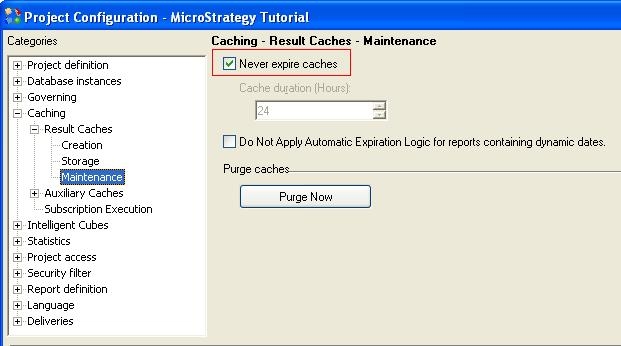
  • In the Project Configuration > Caching > Result Caches > Maintenance settings, enable Never expire caches, like shown below:

ka04W00000148jfQAA_0EM440000002B1i.jpeg
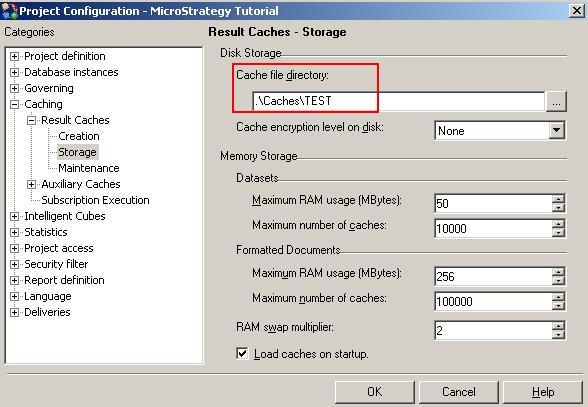
  • Under Project Configuration > Caching > Result Caches > Storage, take note of the Cache file directory, like shown here. This corresponds to the physical directory on the Intelligence Server filesystem where the cache files will be written. If you change this path, you will need to restart the Intelligence Server for the change to take effect.

ka04W00000148jfQAA_0EM440000002B1m.jpeg
  • Execute the report(s) or document(s) to generate the caches.
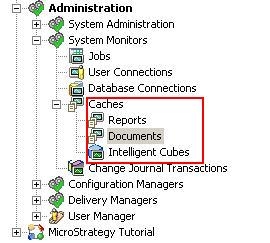
  • Under Administration > System Monitors > Caches, check that the caches have been created. The monitor is shown below:

ka04W00000148jfQAA_0EM440000002B1k.jpeg
  • Stop the Strategy Intelligence Server. At this point, engage your database administrator to collect a backup of the metadata. Consult your database vendor for specific steps.
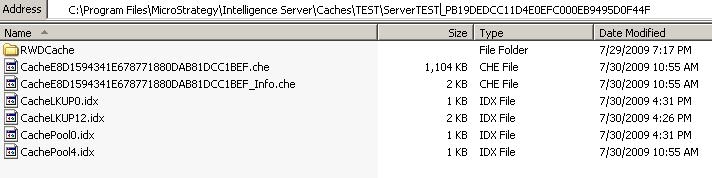
  • On the Intelligence Server filesystem, navigate to the cache file directory retrieved in step 4. The directory may have contents similar to below. The *.che and *_Info.che files are the actual cache files. The RWDCache folder contains dependencies that document caches use. The *.idx files are index files that instruct the Intelligence Server how to map cache objects in the Strategy MD to the physical *.che and *_Info.che files. 
  • Collect only the *.che and *_Info.che files that correspond to your particular report(s) or document(s) (or collect all if you are unsure). Collect all .idx files. If there is an RWDCache directory, collect that as well.

ka04W00000148jfQAA_0EM440000002B1g.jpeg

 
At this point you have everything you need to send to Strategy Technical Support. Send the files collected in step 9 along with the backup of the metadata to Technical Support through the online case management system. If you require assistance uploading these files, contact Technical Support.
 
STEPS FOR RESTORING FILES

  1. Restore the backup of the metadata into a new database with a matching database version.
  2. Use the Configuration Wizard to configure a Strategy Intelligence Server to point to this restored metadata using any server definition.
  3. On this Intelligence Server, take note of the Cache file directory like shown in the screenshot in Steps for Collecting Cache Files step 4.
  4. In Strategy Developer (9.4.1 and above) or Strategy Desktop (anything prior), log into the project which holds the report(s) or document(s) that you would like to restore. Navigate to any report and run it to SQL. This will create the cache folder structure into the directory in step 3.
  5. Shut down the Intelligence Server.
  6. Replace the files in the Cache file directory with the files collected from Steps for Collecting Cache Files step 9.

    Note: if Steps for Collecting Cache Files step 3 was not followed and the collected caches have expired, modify the system clock to a point in time when the caches were not expired.
     
  7. Start the Intelligence Server. This will load the caches into memory.

At this point you can check the Cache Monitor to confirm if the caches have been loaded into memory.
For information on best practices for collecting and restoring cache files refer to the following Strategy Knowledge Base Document:

  • KB19048: Best practices for collecting cache and history list (inbox) files for troubleshooting in MicroStrategy Intelligence Server 9.x and later

For information on Report Services Document caching, refer to the following Strategy Knowledge Base Document:

  • KB11693: New Feature in MicroStrategy 9 – Report Services Document Caching
  • KB20540: New Feature in MicroStrategy 9 – Document Cache Monitor
  • KB484747: Report Services Document Caching behavior with Flash dashboards in MicrosStrategy 9


31178


Comment

0 comments

Details

Knowledge Article

Published:

April 10, 2017

Last Updated:

October 3, 2019