EducationSoftwareStrategy.com
StrategyCommunity

Knowledge Base

Product

Community

Knowledge Base

TopicsBrowse ArticlesDeveloper Zone

Product

Download SoftwareProduct DocumentationSecurity Hub

Education

Tutorial VideosSolution GalleryEducation courses

Community

GuidelinesGrandmastersEvents
x_social-icon_white.svglinkedin_social-icon_white.svg
Strategy logoCommunity

© Strategy Inc. All Rights Reserved.

LegalTerms of UsePrivacy Policy
  1. Home
  2. Topics

KB38739: The MicroStrategy Office Plugin is not available within Microsoft Office application when using MicroStrategy Office


Community Admin

• Strategy


The MicroStrategy Office plugin interfaces with the client operating system and the client Microsoft Office software to execute MicroStrategy reports and documents. This article will cover some cases where the MicroStrategy Office plugin will not appear in the Microsoft Office ribbon bar and describe subsequent troubleshooting steps.

The Strategy Office plugin interfaces with the client operating system and the client Microsoft Office software to execute Strategy reports and documents. This article will cover some cases where the Strategy Office plugin will not appear in the Microsoft Office ribbon bar and describe subsequent troubleshooting steps.


Steps to Troubleshoot

Step 1: Run the Strategy Office Configuration Utility to determine if there are any issues with initializing the plugin. Starting in Strategy Office 9.3.0, users can run a configuration utility trace to log initialization diagnostics. For instructions on how to do this, refer to KB40329: New feature in MicroStrategy office 9.3.0: Startup tracing for Configuration utility
Step 2: Check the COM registration by following the steps below:
  • Verify that the add-on is enabled in the operating system registry:
    • On a 64-bit machine, the registry key is HKLM\Software\Wow6432Node\Microsoft\Office\Excel\Addins\MozartAddIn.MozartAddIn\LoadBehavior
    • On a 32-bit machine, the registry key is HKLM\Software\Microsoft\Office\Excel\Addins\MozartAddin.MozartAddIn\LoadBehaviour
    • A value of 3 indicates the add-on is enabled while a value of 2 indicates the add-on is disabled
    • For detailed instructions on how to check the registry for this key, refer to KB46367: MicroStrategy Office Plugin is not loaded when Microsoft Office program starts
  • Verify that the add-on toolbar is not disabled in the Microsoft Office software. Refer to KB42741: Users cannot see the MicroStrategy Office 9.x add-in on the Microsoft Office 2007 and 2010 ribbon for more information on how to do this.
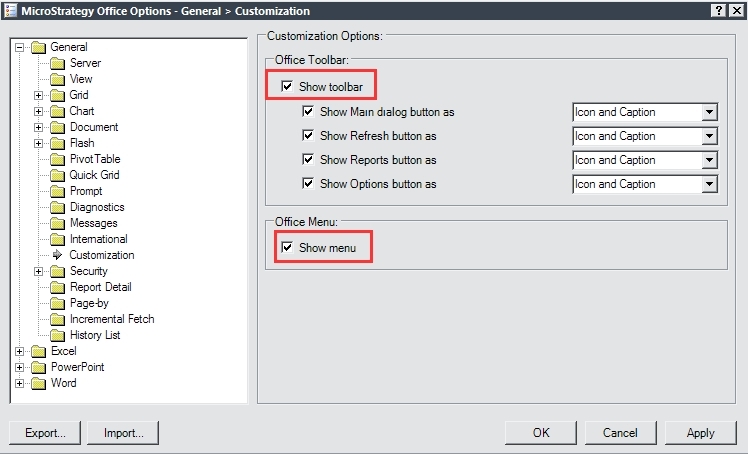
  • Toggle the "Show toolbar" and "Show menu" options in the Strategy Office configuration. Access the configuration settings by navigating to Start > All Programs > Strategy Tools > Office Configuration. In the dialogue, navigate to Customization and enable the "Show toolbar" and "Show menu" options, like shown below:

ka04W00000148hkQAA_0EM4400000027Jb.jpeg
  • Verify that the add-on is registered on the machine:
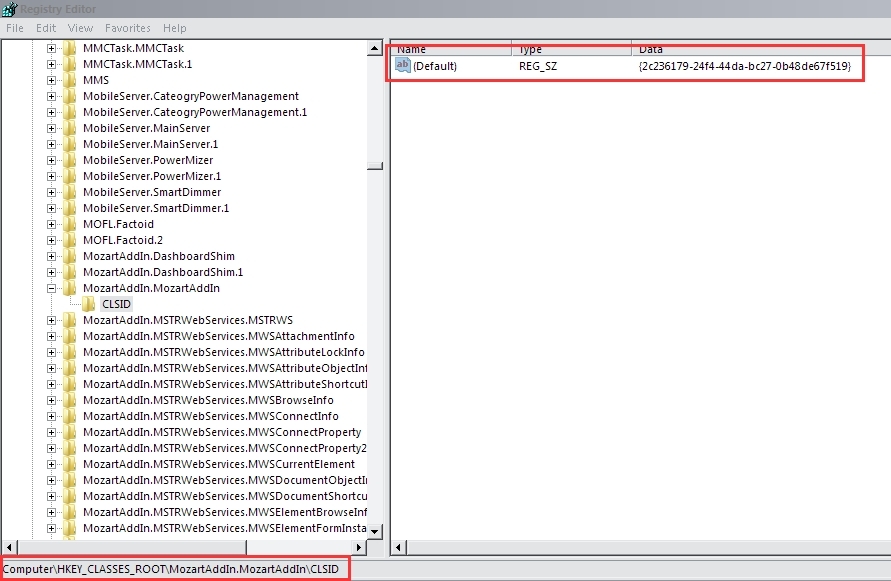
    • In the Registry Editor, navigate to HKCR\MozartAddIn.MozartAddIn\CLSID and verify that the value for the (Default) key is {2c236179-24f4-44da-bc27-0b48de67f519}, like shown below:

ka04W00000148hkQAA_0EM4400000027Jd.jpeg
    • On a 64-bit machine, in Registry Editor navigate to HKCR\Wow6432Node\CLSID\{2C236179-24F4-44DA-BC27-0B48DE67F519}\InprocServer32\CodeBase
    • On a 32-bit machine, in Registry Editor navigate to HKCR\CLSID\{2C236179-24F4-44DA-BC27-0B48DE67F519}\InprocServer32\CodeBase
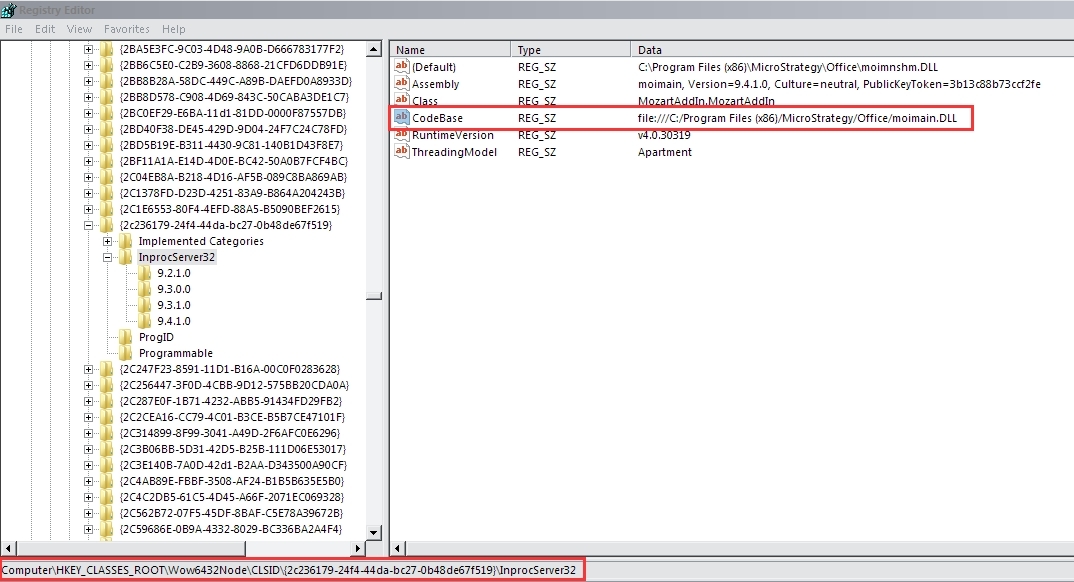
    • Here, the CodeBase key should have a value that corresponds to the location of the Strategy Office assembly. By default, the value is file:///C:/Program Files (x86)/MicroStrategy/Office/moimain.DLL, like shown below:

ka04W00000148hkQAA_0EM4400000027Jf.jpeg

Step 3: Check the .NET registration by using the Microsoft Fusion Log Viewer (fuslogvw.exe) that is installed with the .NET SDK framework to verify if the Strategy Office assembly module (moimain.dll) is loaded. You can obtain the .NET SDK framework from the following locations:

  • For .NET SDK Kit for 64-bit machines: http://www.microsoft.com/download/en/details.aspx?displaylang=en&id=15354
  • For .NET SDK Kit for 32-bit machines: http://www.microsoft.com/download/en/details.aspx?displaylang=en&id=19988

Navigate to Start > All Programs > Microsoft.NET Framework SDK to open the SDK command prompt. Here, type in fuslogvw. In the dialogue, click Settings to enable the log.
Note: Remember to disable the log after troubleshooting is complete.
Here is an example of what the log file looks like:


Bind result:  hr = 0x0. The operation completed successfully.

Assembly manager loaded from:   C:\WINDOWS\Microsoft.NET\Framework\v2.0.50727\mscorwks.dll

Running under executable  C:\Program Files\Microsoft Office\OFFICE11\EXCEL.EXE

--- A detailed error log follows.

=== Pre-bind state information ===

LOG: user  = DA56\Administrator

LOG: DisplayName = moimain, PublicKeyToken=3b13c88b73ccf2fe

(Partial)

LOG: Appbase = file:///C:/Program Files/MicroStrategy/Office/

LOG: Initial PrivatePath = NULL

LOG: Dynamic Base = NULL

LOG: Cache Base = NULL

LOG: AppName = NULL

Calling assembly: (Unknown)

===

LOG: This bind starts in default load context.

LOG: No application configuration file found.

LOG:  Using machine configuration file from c:\WINDOWS\Microsoft.NET\Framework\v2.0.50727\config\machine.config

LOG: Policy not being applied to reference at this time (private, custom, partial, or location-based assembly bind).

LOG: Attempting download of new URL  file:///C:/ProgramFiles/MicroStrategy/Office/moimain.DLL

LOG: Assembly download was successful. Attempting setup of file: C:\Program Files\Strategy\Office\moimain.dll

LOG: Entering run-from-source setup phase.

LOG: Assembly Name is: moimain, Version=9.0.2.0, Culture=neutral, PublicKeyToken=3b13c88b73ccf2fe

LOG: A partially-specified assembly bind succeeded from the application directory. Need to re-apply policy.

LOG: No application configuration file found.

LOG:  Using machine configuration file from c:\WINDOWS\Microsoft.NET\Framework\v2.0.50727\config\machine.config

LOG: Post-policy reference: moimain, Version=9.0.2.0, Culture=neutral, PublicKeyToken=3b13c88b73ccf2fe

LOG: assembly was found in the GAC

LOG: Binding succeeds. Returns assembly from  C:\WINDOWS\assembly\GAC_MSIL\moimain\9.0.2.0__3b13c88b73ccf2fe\moimain.dll

Error: Assembly is loaded in default load context.

 
Contact Strategy Technical Support for further assistance with any of the steps mentioned here or if you require additional troubleshooting help.


Comment

0 comments

Details

Knowledge Article

Published:

June 6, 2017

Last Updated:

October 24, 2017