EducationSoftwareStrategy.com
StrategyCommunity

Knowledge Base

Product

Community

Knowledge Base

TopicsBrowse ArticlesDeveloper Zone

Product

Download SoftwareProduct DocumentationSecurity Hub

Education

Tutorial VideosSolution GalleryEducation courses

Community

GuidelinesGrandmastersEvents
x_social-icon_white.svglinkedin_social-icon_white.svg
Strategy logoCommunity

© Strategy Inc. All Rights Reserved.

LegalTerms of UsePrivacy Policy
  1. Home
  2. Topics

KB42468: How to display a document or report as a home screen on the iPhone, iPad, or Android device using MicroStrategy Mobile


Community Admin

• Strategy


In MicroStrategy Mobile, a Mobile administrator can specify a report or document to act as a home screen on the iPhone, iPad, or Android devices.

In Strategy Mobile 9.x and 10.x, a Mobile administrator can specify a report or document to act as a home screen on the iPhone, iPad, or Android devices. Follow these steps to accomplish that.
ACTION
  • Go to the Strategy Mobile Administrator page:
    Mobile ASP: http://<SERVERNAME>/microstrategyMobile/asp/Admin.aspx
    Mobile JSP: http://<SERVERNAME>:<PORT>/MicroStrategyMobile/servlet/mstrWebAdmin
  • Create or modify an existing Mobile configuration.
    Note: Refer to article KB33919: How to use the MicroStrategy Mobile Configuration for the Connectivity Settings in MicroStrategy Mobile 9.4.x and 10.x  for
    more information on creating a mobile configuration.
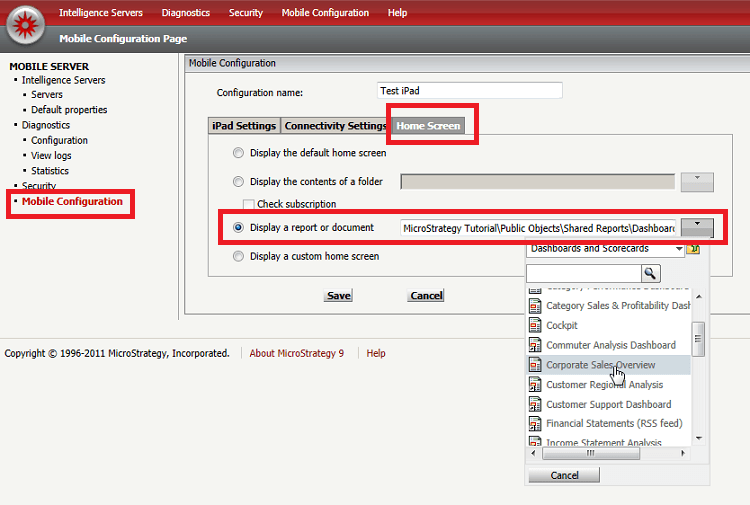
  • Click on the Home Screen tab and select the radio button option for "Display a report or document". 
  • Click on the arrow pointing downward and navigate to the desired document or report to show as the home screen, as shown below.
    Note: Refer to article KB42461: Users cannot choose a custom home screen when creating a mobile configuration and any type of project authentication except standard has been chosen in the connectivity settings in MicroStrategy Mobile 9.3.0  for more information if the authentication textboxes appear grayed out.
ka04W00000148YNQAY_0EM440000002AEB.png
  • Starting in Strategy Mobile 9.2.1m a new setting will also appear for Pre-caching the content at startup.
ka04W00000148YNQAY_0EM440000002AE7.jpeg
  • The Strategy Mobile 9.2.1m and 9.3.0 application can be configured to cache and preload the contents of a folder in the background when the application reconciles. This feature creates a faster response time for the contents of the desired folder, and allows to cache objects without requiring users to manually execute them.
  • Save the configuration and then generate the URL. 
    Note: A new URL does not need to be generated if an existing configuration was modified.
ka04W00000148YNQAY_0EM440000002AE5.png
  • View this configuration from a mobile device and note that when opening the URL, users are taken directly to the document or report designated as the Home Screen.

Note: For more information on how to display a custom Home Screen, refer to article KB34018: How to display a custom home screen on the iPhone or iPad using MicroStrategy Mobile 9.x or 10.x .


Comment

0 comments

Details

Knowledge Article

Published:

June 13, 2017

Last Updated:

June 13, 2017