It might be possible to get into an issue like the presented below when upgrading a cluster environment where the caches files are not getting deleted from its respective locations after clicking in "Purge Now." To understand this particular situation, it is important to remember the following:
As is known caches in a project can be deleted at once by selecting the Purge Caches option in the Project Configuration. However, when using a clustered Intelligence Server setup to purge the element cache for a project, you must purge the cache from each node of the cluster individually, which as well forces executed objects after the purge to retrieve and display the latest data from the data warehouse.
Additionally, Strategy strongly recommends invalidating the Matching and Matching-History caches instead of deleting them directly.
Also, caches can be manually deleted via the Cache Monitor (KB14220 ) and Command Manager (Purge Caching statement, Delete Report Cache statement, Delete Document Cache statement and Delete Intelligent Cube Cache statement), or schedule deletions via the Administration Tasks Scheduling (KB9797), in the same way, that you manually invalidate caches.
KB16079: What is the difference between invalidating, expiring, deleting, and purging a report cache in Microstrategy Intelligence Server
WARNING:
Purge caches only when you are sure that you no longer need to maintain any of the caches in a particular project, and otherwise delete individual caches.
SYMPTOM
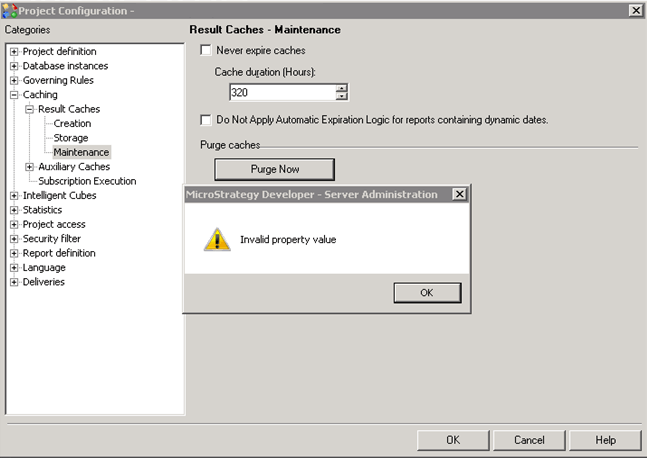
After the attempt to Purge all caches, we might encounter the error message "Invalid property value" like on the image below, and if the corresponding directories that contained the caches are checked, some cache files may continue to display in it:
CAUSE
This error message can occur because the results might also be cached at the Object and Element levels in addition to the Report/Document level which could limit the data presented (not the most recent) after executing particular the Report or Document.
ACTION
To address this scenario, please follow the instructions on purging all the element and object caches, from the links below:
Deleting all element caches
Deleting object caches
RELATED KB ARTICLES:
KB16079: What is the difference between invalidating, expiring, deleting, and purging a report cache in Strategy Intelligence Server
KB18804: After executing a ’PURGE [ALL REPORT] CACHING' script in Strategy Administrator Command Manager 9.x and 10.x, History List messages return the message 'Cached report result not found in server report cache.'
KB12270: How to create a schedule to purge object caches in MicroStrategy Command Manager 9.4.x - 10.x
KB35506: How to delete report caches based on a security filter in Command Manager
KB13711: How to invalidate/delete caches and History List messages in MicroStrategy Intelligence Server using a scheduled administration task
KB441452
