EducationSoftwareStrategy.com
StrategyCommunity

Knowledge Base

Product

Community

Knowledge Base

TopicsBrowse ArticlesDeveloper Zone

Product

Download SoftwareProduct DocumentationSecurity Hub

Education

Tutorial VideosSolution GalleryEducation courses

Community

GuidelinesGrandmastersEvents
x_social-icon_white.svglinkedin_social-icon_white.svg
Strategy logoCommunity

© Strategy Inc. All Rights Reserved.

LegalTerms of UsePrivacy Policy
  1. Home
  2. Topics

KB274946: How to send in logs to MicroStrategy Technical Support to troubleshoot MicroStrategy Web 9.x-10.x related issues


Community Admin

• Strategy


This article covers the most common logs regarding issues between a client machine, the web application server machine, and the MicroStrategy Intelligence Server that MicroStrategy Technical Support may request when troubleshooting a MicroStrategy Web 9.x-10.x issue.

This article covers the most common logs regarding issues between a client machine, the web application server machine, and the Strategy Intelligence Server that Strategy Technical Support may request when troubleshooting a Strategy Web 9.x-10.x issue. The following combinations of logs must be provided for a full picture of a system issue.
 
Note: It is critically important to send in the following information with every log delivered to Strategy Technical Support:

  1. A precise timestamp that depicts every step of the reproduction of the issue at hand. See Response Template.
  2. Ensure that the timestamps of all the logs delivered match. If they do not match, include the time offset necessary to read the logs.
    For example, if the user logged into Strategy Web at 10:43 am and the error occurred at 10:45 am, the logs should all be around 10:45 am. If they are not, because the user is in a different timezone than the web server machine, provide the difference in timezone. Web server is one hour behind, etc.
  3. If sending in logs regarding specific reports, documents, or other objects, include the object name and object ID for each relevant object.
  4. Provide the name of the user that logged in to reproduce the issue.

RESPONSE TEMPLATE:
Time in the client machine: xx:xx:xx
Time in the web server machine: xx:xx:xx
Time in the IServer machine: xx:xx:xx
-------------------------------------------------------
Logged into Strategy Web at: xx:xx:xx.
Executed report or document at: xx:xx:xx.
(For performance related cases) In the job monitor, job finished at: xx:xx:xx.
Report or document finished rendering at: xx:xx:xx.
or Error occurred at: xx:xx:xx.
Object name:
Object ID:
User name:
User ID:
 
The following are all the logs discussed in this artic:

  • A. Client side logs
  • B. Communication between Client and Web server logs:
    Fiddler log
    WireShark log
  • C. Web server log
  • D. Communication between the Strategy Web server and the Strategy Intelligence Server logs:
    XML API Trace
    Kernel XML
  • E. Special Logs:
    JVM Messages
    Windows event logs
    Authentication trace
    Screenshots of Strategy Web statistics.

A. Client side logs
Client side logs are comprised of JavaScript console outputs. For instructions on how to reach each browsers' Developer Tools, see the table below:
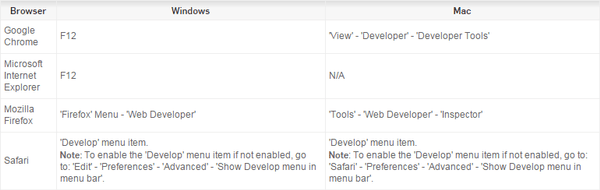
ka04W000000OfvWQAS_0EM440000002PCN.png

In each set of Developer Tools, there will be an option for "Console," which will appear as the sample Internet Explorer console shown below:

ka04W000000OfvWQAS_0EM440000002PCS.png


To send console logs to Strategy Technical Support, take a screenshot of all the messages and errors that appear in the log. For Chrome browsers, it is now possible to save the log, per the image below:

ka04W000000OfvWQAS_0EM440000002PCX.png

B. Communication between Client and Web server logs
To capture information regarding Client to Web server communication, a Fiddler log or Wireshark log must be collected.
Fiddler log - KB20064: How to install and use Fiddler for MicroStrategy Web troubleshooting KB20064 for the basic log.
If using SSL, follow KB20047: How to use fiddler when using HTTPS secure TCP connection with MicroStrategy Web to configure Fiddler for HTTPS decryption.
Wireshark log - KB34369: How to use Wireshark to troubleshoot Kerberos Issues for a basic Wireshark log. Use KB42120: How to capture network traffic in Linux using tcpdump to capture a tcpdump log for Linux only.
 
C. Web server logs
To collect the Strategy Web logs, navigate to:


 <Strategy Web Home>/WEB-INF/log

The logs are in the following format:

MSTRLog[MonthDayYear]_[Iteration of Day].log

A sample log looks as follows: MSTRLog12162015_1.log. The logs have a maximum length of 10MB and will iterate after reaching that limit for a day.
The Web logs can be configured for more granular detail, as well as changing the location of the logs and the maximum file size for each log.  These options are configured in the Strategy Web Administrator Page > Diagnostics > Configuration, as shown below:

ka04W000000OfvWQAS_0EM440000002PCc.png

 
Note: The DSSErrors log on the Strategy Web server machine does not log any useful information, and there is never a need to send this log to Strategy Technical Support. KB36856vcovers the lone error that is logged to the Web DSSErrors log, which is harmless.
 
D. Communication between the Strategy Web server and the Strategy Intelligence Server logs
To collect logs that cover all communication between the Strategy Web server and the Strategy Intelligence Server, collect the two following logs:

  1. The XML-API web logs per KB9836: How is the Web XML API log enabled in MicroStrategy Web. This logs all communication to and from the Strategy Web server and the Strategy Intelligence Server from the Strategy Web server's perspective.
  2. The Kernel XML-API trace on the Strategy Intelligence Server per KB13825: How to enable the Kernel XML API trace in MicroStrategy Intelligence Server. This logs the same communications, but from the Strategy Intelligence Server perspective.

 
E. Special Logs
These logs will not be requested with regularity but may be required for more specialized cases.

  1. JVM Messages log, located in:
    
    C:\Program Files (x86)\Common Files\MicroStrategy\Log

  2. Windows event logs per KB268775: How to send Microsoft Windows Event Logs to MicroStrategy Technical Support for troubleshooting issues with MicroStrategy Web 10.x .
  3. Authentication trace logs per KB42880: How to turn on new traces using the Diagnostics Configuration tool in MicroStrategy 9.x.
  4. Screenshots of the Strategy Web statistics per KB10211: What are MicroStrategy Web statistics and how can they be activated?.

Comment

0 comments

Details

Knowledge Article

Published:

April 14, 2017

Last Updated:

February 18, 2021